
Developers
API Keys
Your server sends an API key with every API request. A key belongs to your account, works in one mode (test or live) and can do only what its permissions allow.
Create a key
- In the dashboard, open Developers. The API Keys tab lists your keys.
- Press Create key.
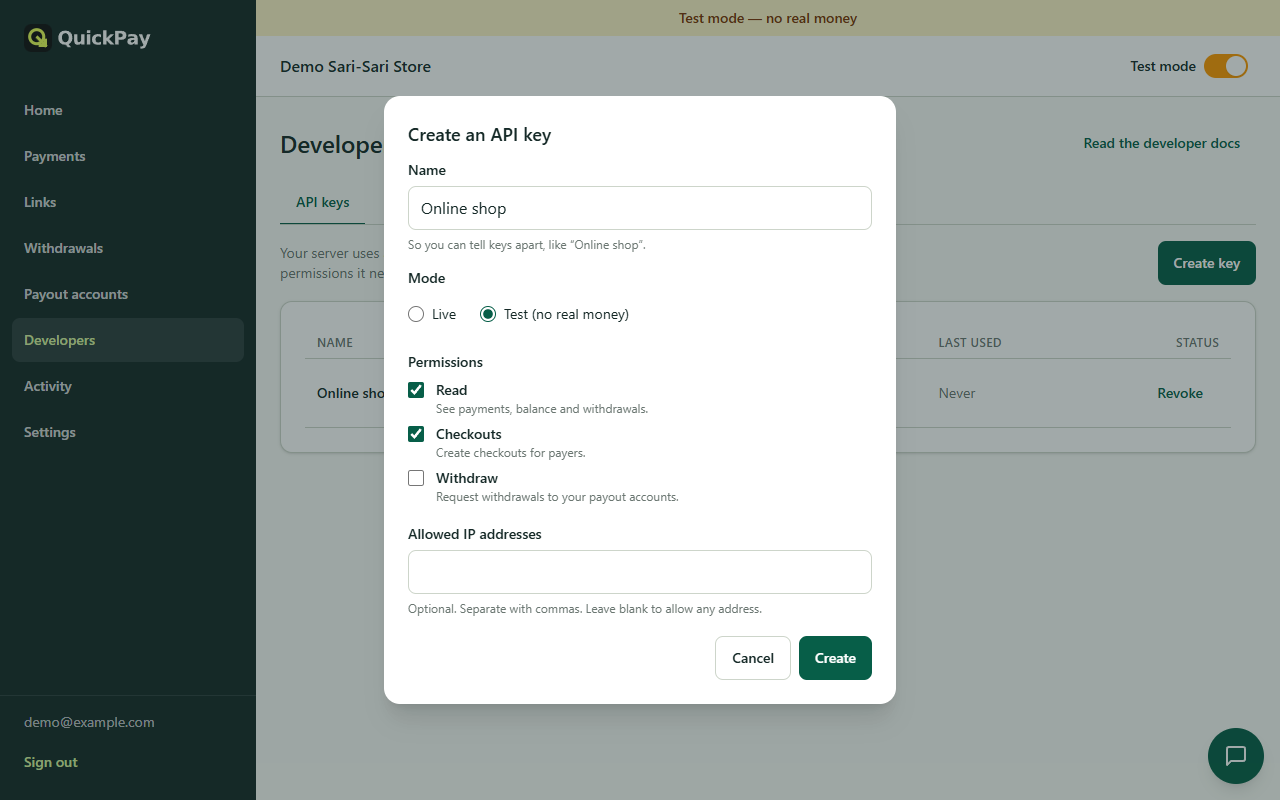
- Give it a Name you will recognise, such as “Online shop”.
- Choose the Mode: Test (no real money) while you build, Live when you go live. Make one of each.
- Choose the Permissions it needs, and no more (see below).
- Optionally list the Allowed IP addresses of your servers, separated by commas.
- Press Create.
The key is shown once
QuickPay shows the full key once, right after you create it. Copy it into your server's configuration, then press I saved it. QuickPay keeps only a hash of it, so nobody, not even QuickPay Support, can show it to you again. If you lose it, create a new key and revoke the old one.
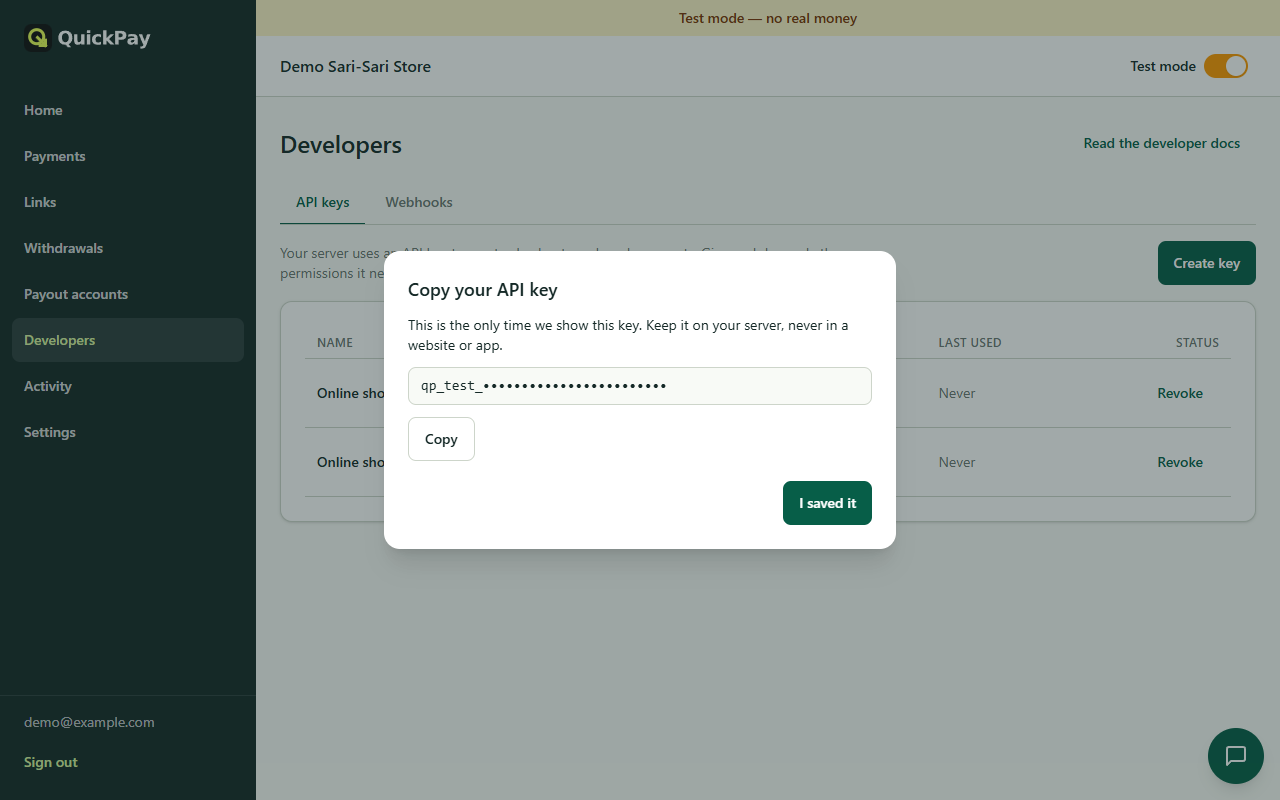
A test key starts with qp_test_ and a live key with qp_live_. The list shows only the first characters of each key, its permissions and when it was last used.
Permissions
| Permission | Scope | Allows |
|---|---|---|
| Read | read | Read checkouts, your balance, payout accounts, withdrawals and withdrawal limits. |
| Checkouts | checkouts | Create checkouts, and simulate test payments. |
| Withdraw | withdraw | Request withdrawals to your saved payout accounts, and simulate test withdrawals. |
A website that only takes payments needs Read and Checkouts. Give Withdraw only to a system that must move money out. A call without the permission it needs answers 403 insufficient_scope.
Use the key
Send the key in the Authorization header of every request:
curl https://quickpayph.com/api/v1/balance \
  -H "Authorization: Bearer qp_test_…"
A missing, unknown or revoked key answers 401 invalid_api_key. A test key only sees test objects and a live key only live ones: each answers 404 not_found for an object of the other mode.
Keep keys on your server
- Use the key only from your server. Never put it in a website's JavaScript, a mobile app, a public repository or a chat message: anyone who has it can act for your account.
- Keep it in an environment variable or a secret store, not in your code.
- With Allowed IP addresses (up to 50 addresses or CIDR ranges, such as
203.0.113.7or203.0.113.0/24), calls from any other address are refused with403 ip_not_allowed. - Each key may make 120 requests a minute by default; past that it gets
429 rate_limited. - An account can have at most 20 active keys.
Revoke a key
In Developers → API keys, press Revoke next to the key and confirm. Anything using it stops working at once, and this cannot be undone. Revoke a key when you stop using it, when someone who had it leaves, or as soon as you think it leaked. To change keys without downtime, create the new key, deploy it, then revoke the old one.